
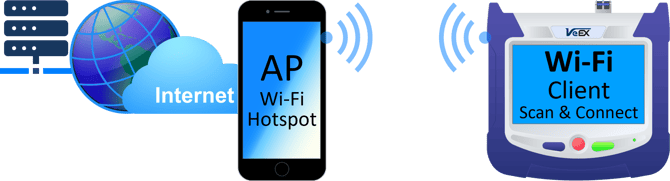
Wireless tethering, or mobile hotspot, is commonly used in the field, as a local and secure way to connect a test set to the internet, so users can upload test results to the VeSion® R-Server, download test profiles and job orders (tickets), access Test with Flow workflow services, upload fiber optics test results to Fiberizer® Cloud, enable remote access via EZ-Remote™, and more. In this scenario, the test set associates as a Wi-Fi client to the smartphone’s access point (AP), while the smartphone provides the cellular data connection to the Internet.
In some cases, however, the test set may not detect the phone's SSID during its Wi-Fi Wizard AP Scan and the connection cannot be established. This is typically caused by a compatibility issue between supported 2.4 GHz, 5 GHz and/or 6 GHz Wi-Fi bands.
Whether the test equipment uses an internal (built-in) Wi‑Fi interface or an external USB Wi‑Fi transceiver (plug-in dongle), some test set models only support the 2.4 GHz band, while most newer smartphones default to (or prefer) 5 GHz and/or 6 GHz.
To ensure the phone’s hotspot is discoverable by the test set:
 For test sets with pluggable external Wi-Fi USB dongles, try replacing it with a VeEX-supplied dual-band WLAN transceiver supporting both 2.4 GHz and 5 GHz (802.11b/g/n/ac). Contact us for further details and availability. Refer to the Why VeEX Still Uses External Wi-Fi and Bluetooth USB Dongles (Transceivers) article for more details.
-
For test sets with built-in single-band 2.4 GHz Wi-Fi transceivers, make sure that the 2.4 GHz band support is also enabled in the smartphone.
- Make sure the phone's AP name (SSID) does not contain special characters or complex name.
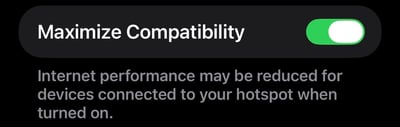
To solve any incompatibility issue, you may try enabling the Maximum Compatibility mode on your phone's hotspot settings and (for test sets supporting 2.4 GHz only) make sure that the phone has the 2.4 GHz band enabled.
Using iPhone™ Personal Hotspot
-
Go to >Settings >Personal Hotspot
-
Enable Maximize Compatibility
-
-
Try the Wi-Fi Scan again on the test set. The phone's Wi-Fi SSID should be discoverable now.
Using Android™ Wi-Fi Hotspot Tethering
Settings and options may vary depending on smartphone manufacturer, models and/or Android OS versions.- Go to >Settings >Network & internet >Hotspot & tethering >Wi-Fi hotspot
- Switch the AP Band from 5 GHz (or 6 GHz) to 2.4 GHz (or hybrid 2.4/6 GHz, if available)
Note: If the Wi-Fi hot spot's SSID (or iPhone's name) includes special characters, like the ones shown below, the test set may not be able to detect or display the device during the Access Point scan.
: ‘ “ \ € £ ¥ •
Although the IEEE 802.11 standard defines support for SSIDs up to 32 octets (not just ASCII characters), common industry practice is to avoid complex names, spaces, and special characters. For best compatibility, the recommendation is to use simple SSIDs and limit special characters to hyphens (-), underscores (_), and periods (.), which are generally considered safe. That extends to certain smartphones' customized names, which are added to their SSID when the hotspot feature is enabled (e.g., creating potentially problematic SSIDs like "JohnDoe's Phone").