
To upload (push) or download (pull) OTDR traces to and from Fiberizer® Cloud for storage, management, reporting or further analysis, first you need to:
-
Connect the instrument to the Internet (through LAN, WLAN/Wi-Fi or smartphone tethering). The assigned local IP address will be displayed on the bottom-left corner of the screen.
-
Have a Fiberizer account, enter your user credentials on the test set in order to connect the OTDR to Fiberizer. (If not registered yet, use a PC, tablet, or phone to visit https://fiberizer.com and register to create a free account.)
To upload test results, select the desired OTDR traces for synchronization, then Push them from the OTDR to the selected Fiberizer Cloud job or project. It will show upload progress and indicate when results are in sync.
You can also pull, download or retrieve OTDR results from Fiberizer Cloud back into an OTDR by downloading collections and selecting desired Job IDs to view on the OTDR's Results page.
Note: The screen size, orientation and user interface may vary between the different types of handheld OTDR test sets offered by VeEX, however, the main workflow remains similar. This short guide uses examples from the popular FX150+ OTDR.
Connecting the Test Set to Fiberizer Cloud
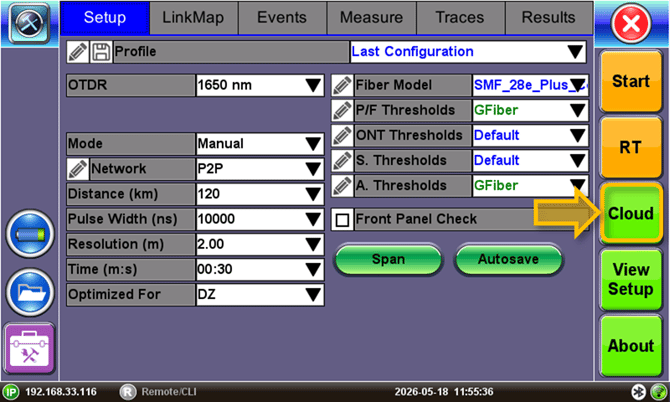
In the OTDR Test Application, go to the Setup page and tap on the  Cloud button.
A Cloud Parameters pop-up will prompt users to sign in to Fiberizer Cloud, using their credentials for the target Fiberizer Cloud URL (https://fiberizer.com).
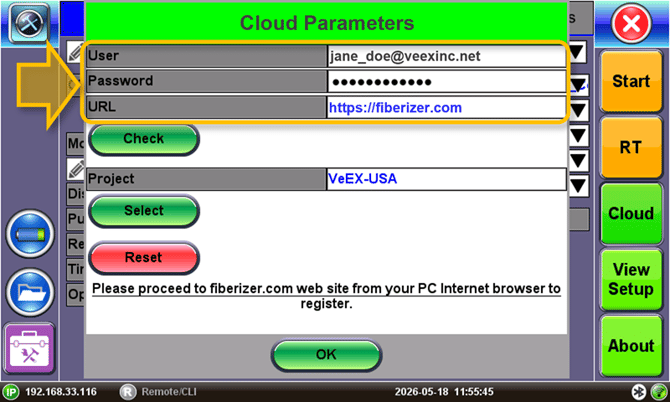
Once the User ID and Password have been entered, tap on the  Check button. This will verify the Fiberizer Cloud credentials and establish a secure connection.
Once successfully connected, press the  Select button and choose from the new pop-up menu which Fiberizer Cloud project you would like to use, to either push or pull results to and from.
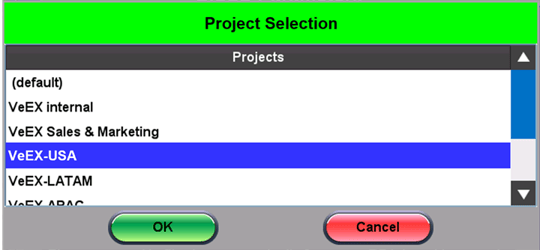
Then press OK to confirm the project and then OK to close the Cloud Parameters page. The OTDR is now connected to Fiberizer Cloud.
Pushing OTDR Results to Fiberizer Cloud
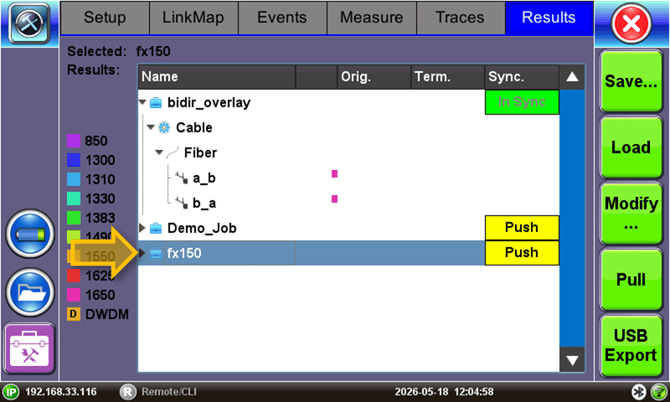
Go to the Results Tab, identify the job folder you want to upload, and press the  Push button next to that job.
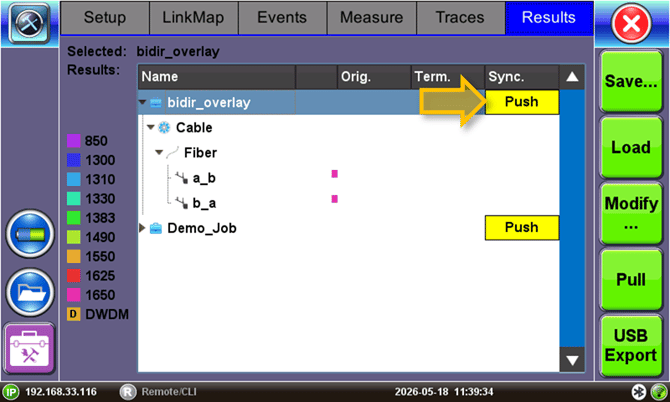
This will upload all the results under the selected Job ID to Fiberizer Cloud, and they will be stored in the Job folder, under the project you selected in the Cloud Parameters. After the push is initiated an uploading dialog box will appear displaying the progress of the upload. Once the upload process has finished, the status for the selected job folder will now display  In Sync.
Pulling OTDR Results from Fiberizer Cloud
To retrieve OTDR traces from Fiberizer Cloud, back to a test set, go to the Results tab and press the  Pull button. After the process is initiated, a Collection Selection dialog box will appear.
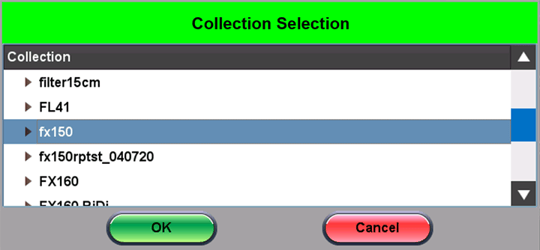
Once the collection list gets populated, select the entry that corresponds to the OTDR results group you want to download to the test set, then press OK. A Downloading Files dialog box will open and show the download progress. After the download completes, the Job ID folder and associated results will appear on the local test set’s Results page, where they are available for offline review and analysis.
Related Test Solutions
-
Fiberizer™ - Cloud Service for Storage, Management, Analysis, and Reporting of Fiber Optics test results
-
FX150+ - PON/FTTx and Point-to-Point Mini OTDR Family
-
FX160 - FiberBEAST™ Bidirectional OLTS and OTDR
-
MTTplus-410+ - OTDR Module for the MTTplus Platform
-
OPX-BOXe™ - Pocket Size Mini OTDR (USB/Wi-Fi/Bluetooth)
-
RFTS-400 - Remote Fiber Test System
-
RXT-4100+ - OTDR Module for the RXT-1200 Platform
-
RXT-4113+ - Tunable xWDM OTDR Module for the RXT-1200 Platform