
 Although passive Layer 1 loopback can be easily made or purchased for a variety of copper and fiber interfaces, they can only be used on physical or dark links (point-to-point cables or fibers) and shall not be used in switched networks. Using a physical loopback in an active network can cause severe network problems (as a minimum, the port can be blocked for sending illegal traffic).
-
Active Layer 2 (MAC) loopbacks can be used across switched networks. They swap the packets' Source and Destination MAC addresses, before sending them back to the same port, so the "bounced " packets stay valid and can be sent back to the test set.
-
Active Layer 3 (IP) loopbacks can be use across routed networks. They swap the packets' Source and Destination MAC and IP addresses, before sending them back to the same port, so the "bounced" packets stay valid and can be routed back to the test set.
- The Ethernet loopback feature can be configured to filter incoming traffic and return only the designated test packets. This is particularly important in live networks, where it is not advisable to loop back traffic generated by other network elements, such as multicast or broadcast packets.
Ethernet test equipment (and other network devices) offers Layer 2 and Layer 3 loopback functionality, that properly swaps MAC and IP addresses, so the test traffic is properly returned back to the source (test set) for end-to-end connectivity, throughput and integrity analysis. The loopback device itself may monitor the traffic and provide some performance measurements on the traffic that passes through.
As a best practice, always verify that your test set is running the most recent software version. Latest software releases can be found on our website. Be sure that you download the version that is compatible with your test set.
Manual Ethernet Loopback Mode on VeEX Test Sets
VeEX Ethernet-capable test sets can operate as active loopback devices, returning test traffic back to the NOC or to the originating test set running the performance tests. The example below outlines the procedure using the TX340S. (While the user interface may differ between models, the overall workflow should be similar.)
- If available, in multi-port test sets, select between
 Port Group 1 (P1) and
  Port Group 2 (P2), whichever is available.
 - Select the appropriate physical Test Port (test interface) required for the link under test (e.g., RJ45, SFP56/28/+, SFP-DD, QSFP112/56/28/+, QSFP-DD, OSFP, CFP4, etc.). Insert the required transceiver in the respective slot.
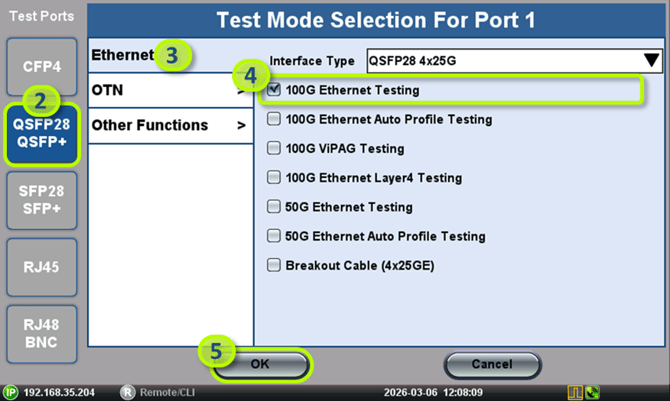 or
or 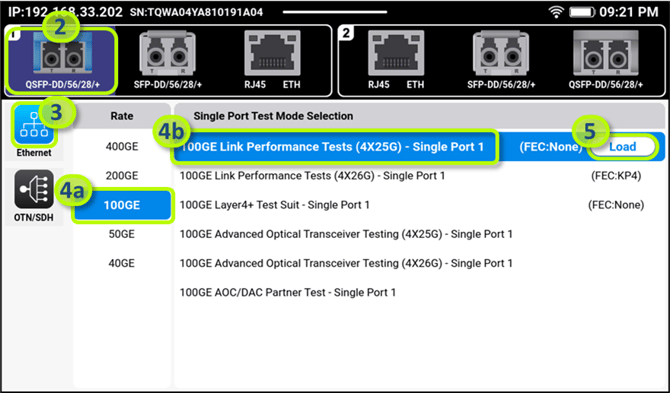
- Select the Ethernet protocol
- Select the Data Rate and Test Mode to match the link under test (e.g. 100G Ethernet Testing or 100GE Link Performance Tests)
- Tap on the OK or Load button to launch the Test mode
- If the test set starts on the Menu (below), select
Loopback. If it starts in a Results screen,
 swipe left, from the right edge of the screen, to open the Menu and then select Loopback.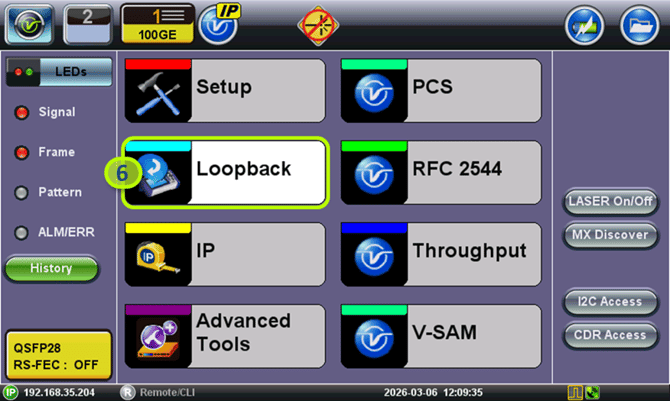
or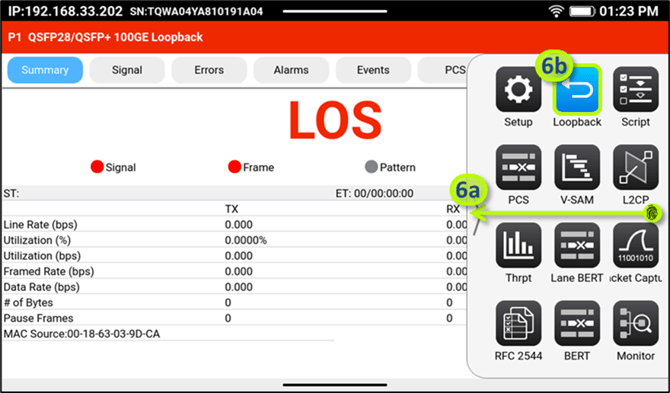
-
If offered, in the Setup screen, select the Simple Loopback payload mode to return all the traffic directed towards the test set. (If using the MTX642 or MTX640, swipe up from the bottom of the screen to display the test application menu and tap on
 Setup)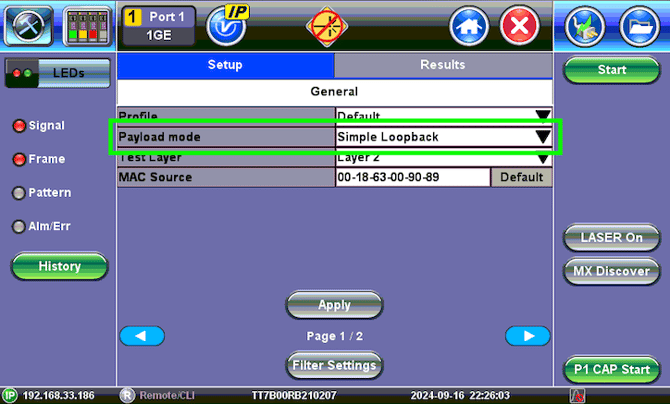
- Select the appropriate Test Layer to match the link under test. Layer 2 is commonly used for leased lines and Layer 3 for Internet access (business) services. There may be other options to choose from, including Layer 4, PBB, MPLS-TP and EoE payload encapsulations. Let's use plain Layer 2 as an example.
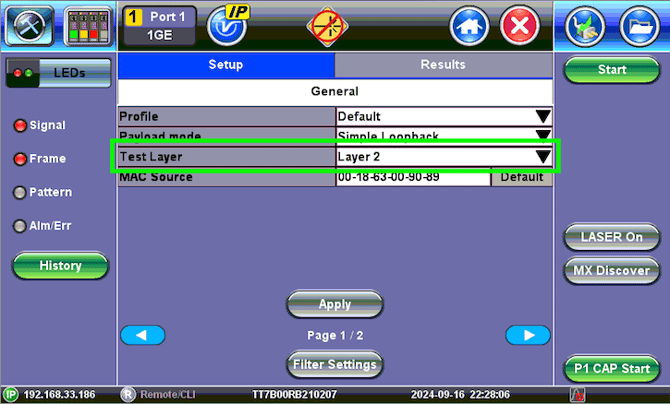
or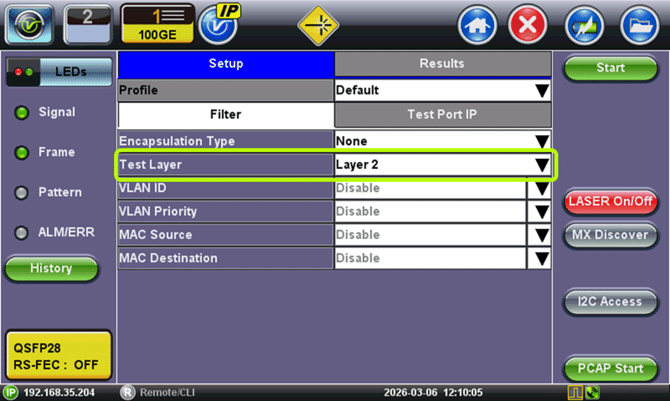 or
or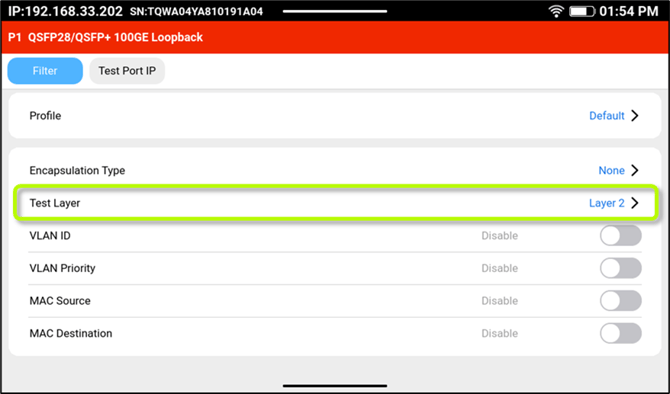
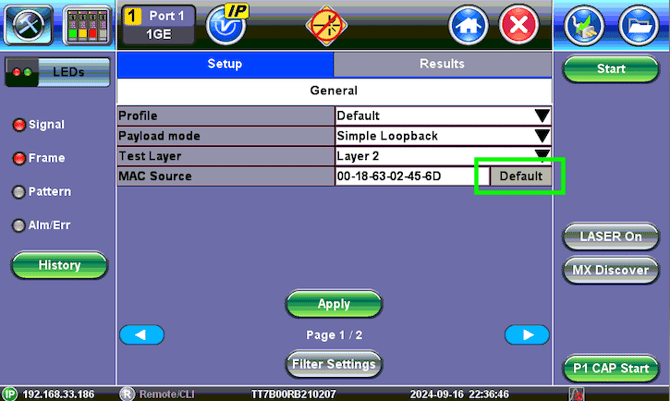
- If available, tap the Default MAC source button. In some cases, the test set's MAC address could have been modified (MAC spoofing) during a previous test, so the unique VeEX MAC address may not appear in the MAC Source field. Pressing Default restores the MAC Source field to the test set’s native MAC address.
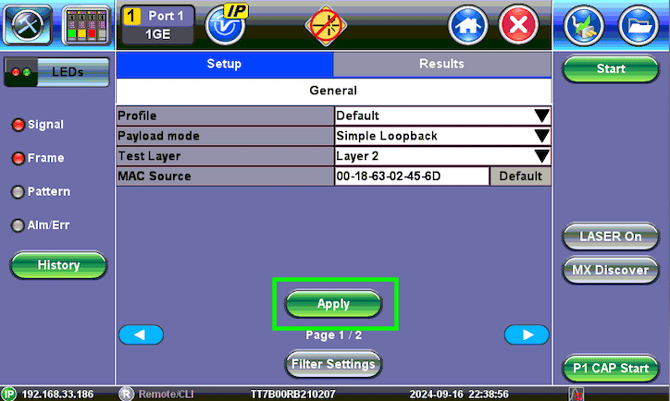
- If shown and changes were made, tap on the green Apply button.
- If an optical interface was selected, tap on the LASER button to turn the transmitter ON and verify that the yellow Active Laser icon

 is displayed on the top of the screen.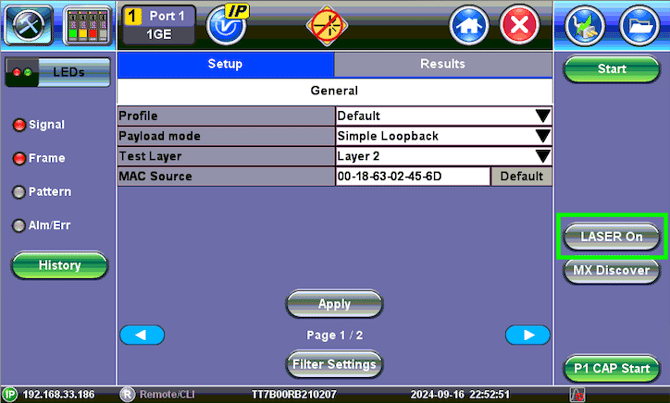
- Connect the test set to the port (link) under test and press the Start button to activate the loopback mode.
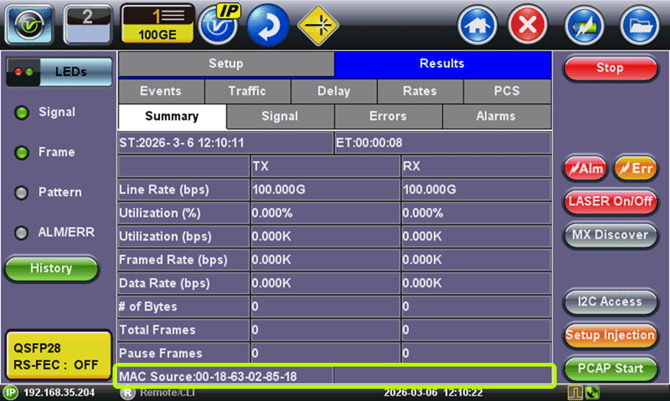
- Let the person at the other end of the link (e.g., NOC) know the MAC Source (layer 2 tests) or IP address (Layer 3+ tests) of the test set in loopback mode, so they can enter it in their Throughput Test setup and start generating the respective test traffic towards this test set, to run all the required troubleshooting or validation tests.
or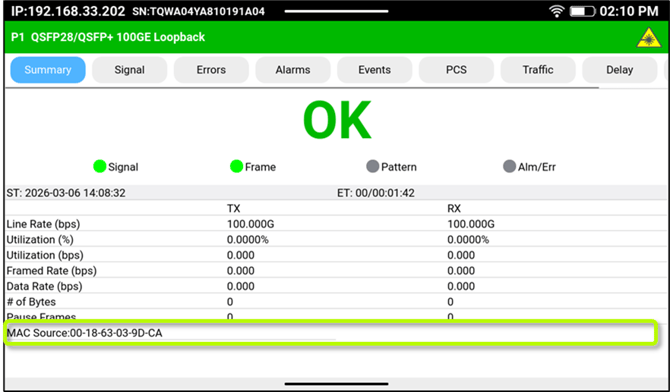
While in Loopback mode, the addresses in all the packets received by this test set will have their source and destination addresses swapped and sent back to the test set generating the test traffic, for performance analysis.
Related Test Solutions
-
MTX150 - 10G Multi-Service Test Set
-
MTX150x - Dual 1/10G Ethernet Services Installation Test Set
-
MTX640 - Dual 100G/400G Portable Test Set
-
MTX642 - Dual 400G Portable Test Set
-
TX340s - Dual 16G Multi-Service Test Set
-
TX300s-100GX - 100GG Multi-Service Test Module
-
RXT-3400 - Advanced Dual 16G Multi-Service Test Module (SFP+)
-
RXT-6200 - Advanced Dual 100G Multi-Service Test Module (QSFP28)
-
RXT-6402 - Advanced Dual 400G Multi-Service Test Module (QSFP-DD)
-
RXT-6802 - Advanced Dual 800G Multi-Service Test Module (QSFP-DD)
- RXT-6811 - Advanced Dual 800G Multi-Service Test Module (OSFP, QSFP-DD)