
This step-by-step guide explains how to use different 100G-capable portable instruments from VeEX to test OTU4 links carrying 100GE traffic (Ethernet over OTN or EoOTN).
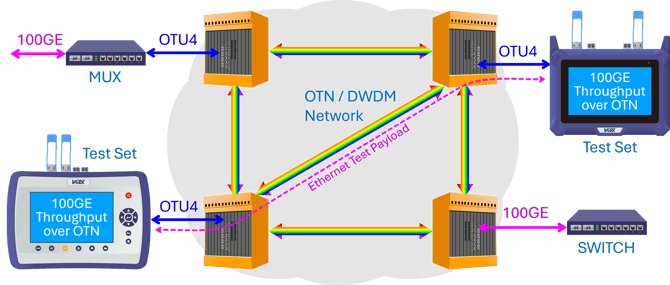
Layer 2 Throughput testing can be performed either Point-to-Point, using two test sets (one at each end of the link), or Point-to-Loopback, using a single test set and an active loopback device. For Point-to-Loopback testing, confirm with the Network Operations Center (NOC) whether they will provide the active loopback and you will generate the traffic, or if you are expected to configure the test set as the active loopback device. In either case, ensure you obtain the required destination MAC addresses before starting the test. This article focuses on using the test set to generate the test traffic and measure the link's performance.
- Confirm that the link interface available to you for testing purposes is indeed a 112 Gbps OTU4 OTN port (not a 100GE port).
- Confirm whether you will be testing against a logical loopback at the OTU4 level or at the 100GE payload level, or against another test set at the far end.
- Get all the required MAC addresses required for the end-to-end test.
If the 112 Gbps OTU4 OTN link has been provisioned to carry 100 Gbps Ethernet traffic as an ODU4 payload, it can be tested using the Throughput test feature, by selecting the Ethernet payload options available in VeEX test set. Similar process also applies to 40GE-over-ODU3/OTU3, 10GE-over-ODU2e/OTU2e, and 10GE-over-ODU2/OTU2 (GFP-F). Optional software licenses are required in the test set.
Although the graphical user interface (GUI) may be different between test sets, the procedure flow and settings are very similar. Check the back label to identify the specific test set model (version), then refer to the appropriate test procedure.
Test Procedures
Note: If you are not familiar with VeEX test platforms, please refer to the RXT-1200 Series - Quick Start Guide, the MTX642 & MTX640 400G Test Sets - Quick Start Guide., or the TX300s Series - Quick Start Guide, for basic operation instructions.
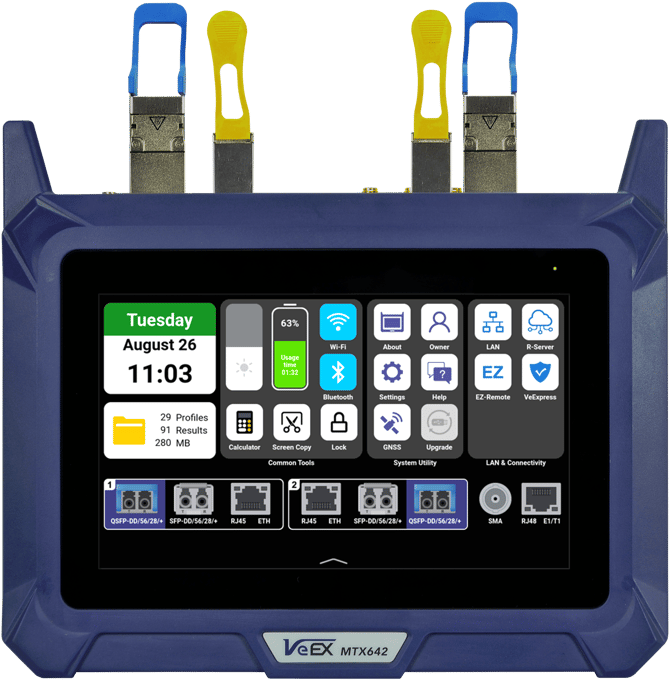
MTX642/640 - Testing 100GE Throughput over OTU4
-
Turn the MTX642 or MTX640 test set ON and wait for the main menu to be displayed.
-
From the System & Settings landing page/menu, Swipe Up from the bottom of the screen
 , to open the Test Mode Selection menu.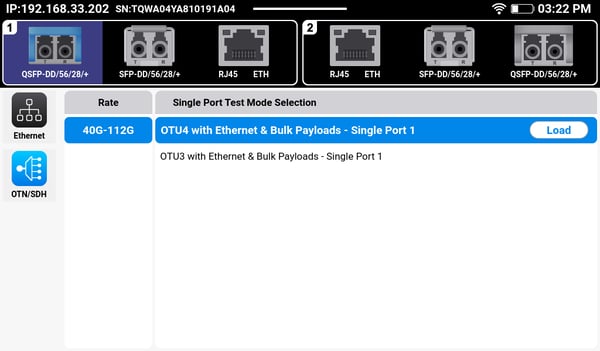
-
Tap on the QSFP-DD/56/28/+ transceiver icon in Port Group 1, located on the top-left, to select it as the active test port.
-
Insert an OTU4 capable QSFP28 transceiver in the respective connector panel slot, with its pull-tab facing towards the back (as indicated by the pull-tab label
 next to it).
 -
Tap on the OTN/SDH technology selection icon on the left.
-
Select the 40G-112G Rate button.
- Select the OTU4 with Ethernet & Bulk Payloads - Single Port 1 test application and tap on the Load button to launch it. Wait for the OTU4 test application to load and the test application menu is displayed.
-
Once the OTU4 test application menu is displayed, select Port Setup.
-
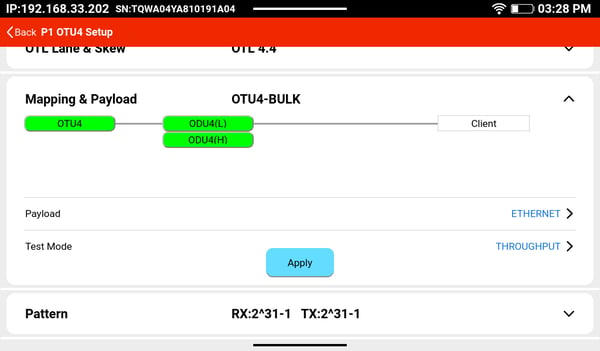
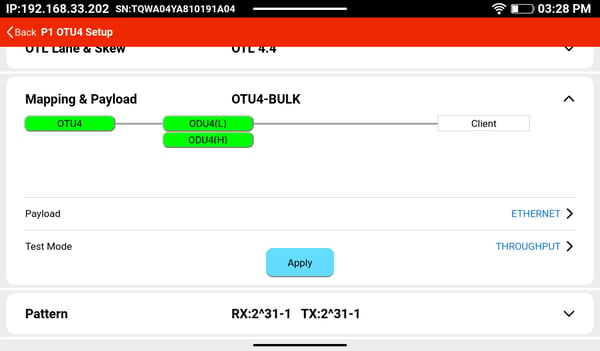
On the OTU4 Setup screen, select the Mapping & Payload row, to expand it.
- Select ODU4(L) mapping, if not already selected, to allocate the full capacity of the OTU4 link, and accommodate all the 100GE traffic.
- Tap on the right side of the Payload line and select Ethernet.
- Tap on the right of the Test Mode line and select THROUGHPUT.
- Tap on the Apply button and wait for the test set to reconfigure.
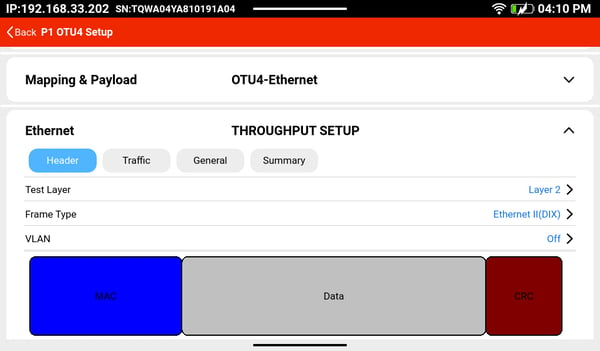
- Select the Ethernet THROUGHPUT SETUP row, to expand it and configure the Throughput test characteristics.
-
Select >Header >Test Layer = Layer 2.
-
Them tap on the blue MAC block and enter the MAC Destination address for the port, test set or loopback at the other end of the Ethernet link. (If the MAC address of the source needs to be spoofed, then enter the desired valid address in the MAC Source field. Use the MAC Source button to recall the official test set's factory-assigned MAC address.)
-
Select Traffic and configure the desired Frame Size (e.g., 1518 bytes) and Bandwidth usage (e.g., 100%).
-
-
Tap on the <Back button on the top-left corner of the screen.
-
Clean and inspect the transceiver's LC-PC optical ports.
-
Clean and inspect a duplex LC-PC patch cord and connect it to the test set's QSFP28 port and to the link or device under test (DUT).
-
Swipe Up from the bottom of the screen to open the action buttons menu. Tap on the LASER button to start transmitting signal. A laser warning
 icon will be shown on the top-right corner of the screen, while transmitting.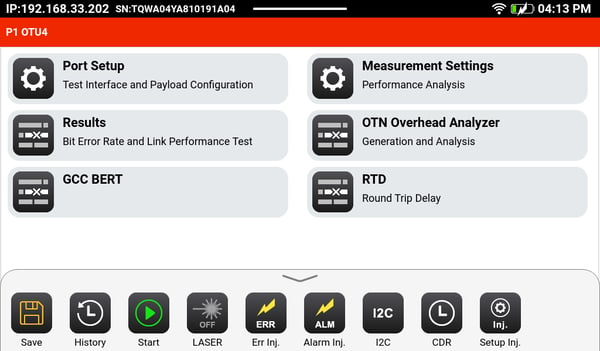
-
If the top bar is green (OK), then tap on the Start
 button to get the test started. The test set automatically displays the measurement Results screen.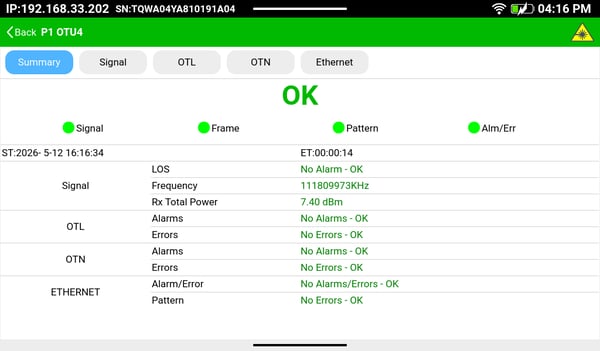
Once you have gathered enough data, swipe up from the bottom, to open the actions menu and tap on the Stop button. Tap on the Save  button to store the test results. Use a descriptive name for the test report.
When finished, Swipe Right, starting from the left edge of the screen, to reveal the Test Mode Selection menu. Then tap on the Release button.
TX300s-100GX - Testing 100GE Throughput over OTU4
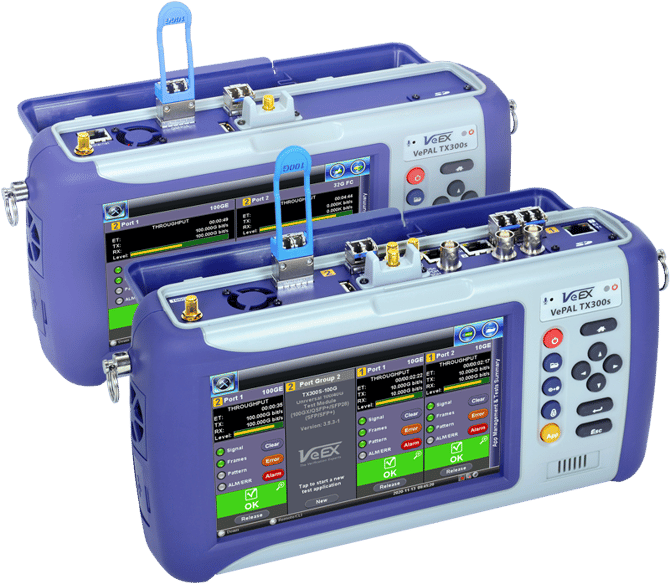
The TX300s-100GX mulri-service 100G test set is available in two configurations:
- TX300s-100GX - With single factory-installed test module, supporting up to two test applications. It offers the following test ports: 1x QSFP28/+, 1x SFP28/+, 1x RJ45. (Shown on the back.)
- TX340s-100GX - A more capable test set with dual factory-installed test modules, supporting up to four test applications. It offers the following test ports: 1x QSFP28/+, 1x SFP28, 2x SFP+, 2x RJ45 and legacy SDH/SONET/PDH/DSn ports. (Shown on the front.)
-
Turn the TX300s test set ON and wait for the Test Cards menu to be displayed.
-
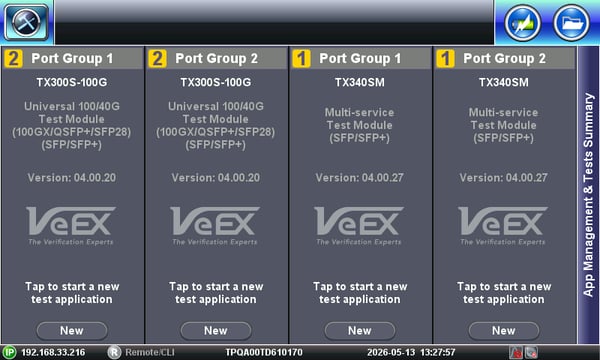
The TX300s-100GX will show two test cards, indicating its ability to carry up to two independent and concurrent tests.
- The TX340s-100GX will show four test cards, indicating its ability to carry up to four independent and concurrent tests.
- The numbers in orange boxes identify the test modules installed (1
 or 2
or 2  ). They correspond to the same labels printed on the connector panel.
-
-
Select the QSFP28 Test Card on the left, labeled (module 2)
Port Group 1, by tapping on the New button, to open its Test Mode Selection menu.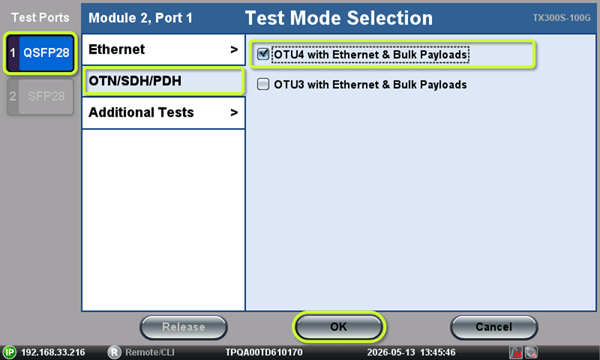
-
The QSFP28 Test Port button will be pre-selected as the active test port, based on the previous selection.
-
Insert an OTU4 capable QSFP28 transceiver into the respective slot, with its pull-tab facing towards the front. The slot labeled QSFP28 is located on the left side of the connector panel.
-
Tap on the OTN/SDH/PDH or OTN/SONET/DSn technology selection line. (The label depends on International vs. USA GUI style setting.)
-
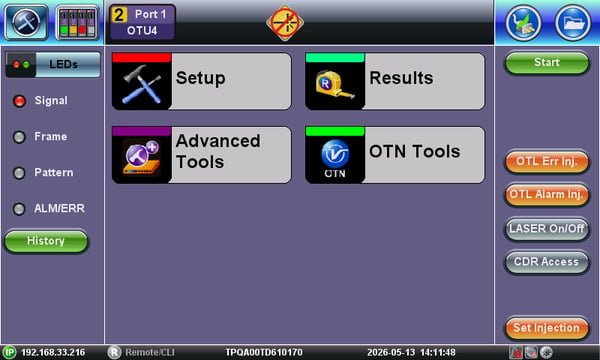
Select the OTU4 with Ethernet & Bulk Payloads test application and tap on the OK button to launch it. Wait for the OTU4 test application to load and the test application's main menu is displayed.
-
Once the OTU4 test application menu is displayed, select Setup.
-
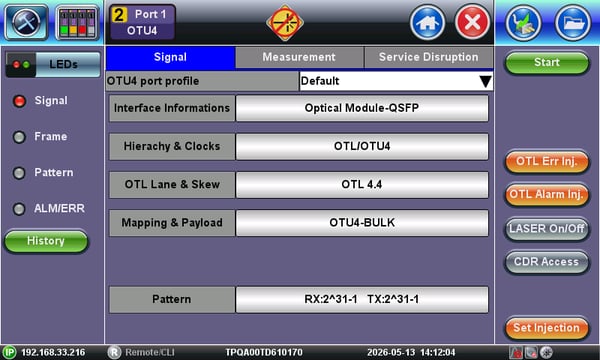
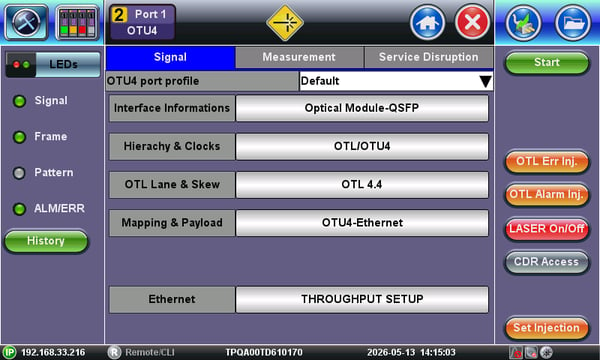
On the OTU4 Setup screen, select the Mapping & Payload row.
-
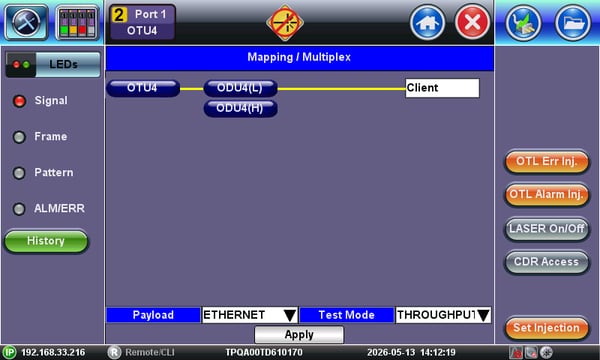
Select ODU4(L) mapping, if not already selected, to allocate the full capacity of the OTU4 link, and accommodate all the 100GE traffic.
-
Tap on the Payload pull-down menu field and select Ethernet.
-
Tap on the Test Mode pull-down menu selection field and select THROUGHPUT.
-
Tap on the Apply button and wait for the test set to reconfigure.
-
-
Tap on the red X Exit
 button to go back to the Signal setup page.
 -
Select the Ethernet THROUGHPUT SETUP row, to configure the Throughput test characteristics.
-
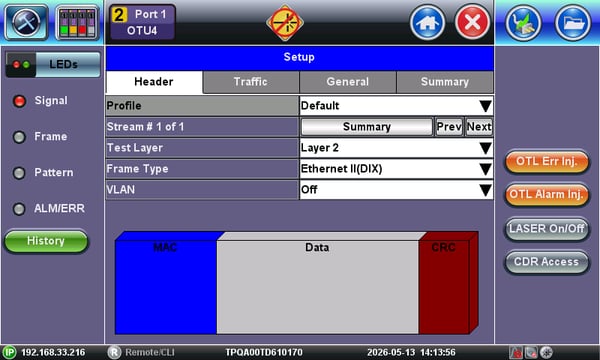
Select the Header tab and set Test Layer = Layer 2.
-
Tap on the blue MAC block and enter the MAC Destination address for the port, test set or loopback at the other end of the Ethernet link. (If the MAC address of the source needs to be spoofed, then enter it in the MAC Source field. Use the MAC Source button to recall the official test set's factory-assigned MAC address.)
-
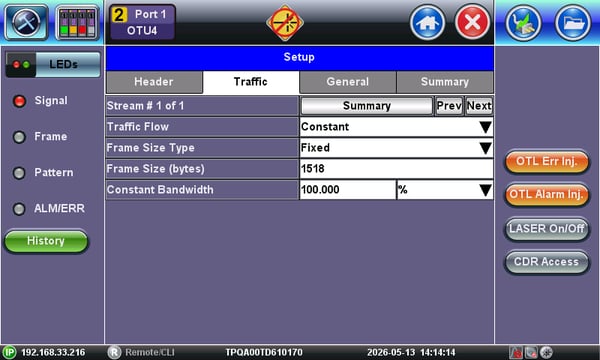
Select the Traffic tab and configure the desired Frame Size (e.g., 1518 bytes) and Bandwidth usage (e.g., 100%).
-
-
Tap on the red X Exit
button on the top bar of the screen, to go back the OTU4 test Signal configuration menu page. -
Clean and inspect the transceiver's LC-PC optical ports.
-
Clean and inspect a duplex LC-PC patch cord and connect it to the test set's QSFP28 port and to the link or device under test (DUT).
-
On the Action Buttons section, on the right side of the screen, tap on the gray out LASER On/Off button
 to start transmitting signal. The Laser button will turn red
  and a laser warning
  icon will be shown on the top bar, while transmitting. (If the laser is OFF, the top bar will show the disabled warning icon
  .)
.)
-
If the soft-LED indicators on the left side of the screen are green (OK), then tap on the Start
 button to get the test started. The test set automatically displays the measurement Results Summary screen. Users can select the different tabs and sub-tabs to get the details on each of the layers.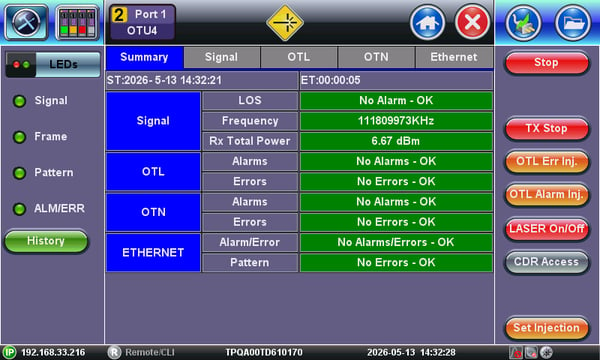
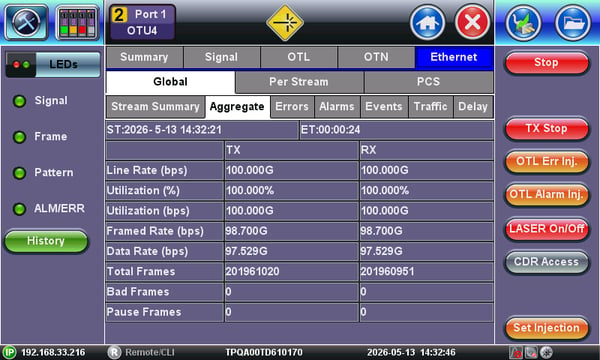
Once you have gathered enough data, tap on the Stop button and press the Save  button to store the test results. Use a descriptive name for the test report.
When finished, tap on the test card  button, to reveal the test management menu, then tap on the OTU4 card's Release button.
RXT-6200 - Testing 100GE Throughput over OTU4
-
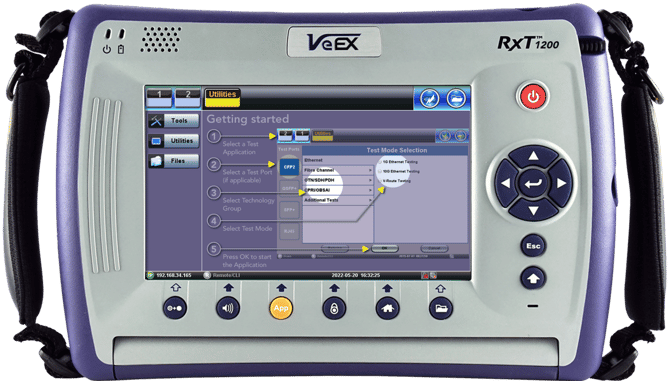
Turn the RXT-1200/6200 test set ON and wait for the Utilities menu (Getting Started screen) to be displayed.
-
Tap on the Port Group 1
 or Port Group 2
  buttons on the top-left corner, to select an available test port group and open its Test Mode Selection menu.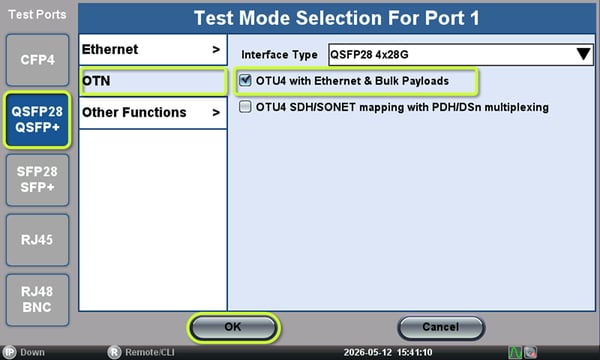
-
Tap on the QSFP28/QSFP+ button on the left, to select it as the active test port.
-
Insert an OTU4 capable QSFP28 transceiver into the respective connector panel slot 1
 or slot 2
  (per previous Port Group selection), with its pull-tab facing towards the back.
 -
Tap on the OTN technology selection line.
-
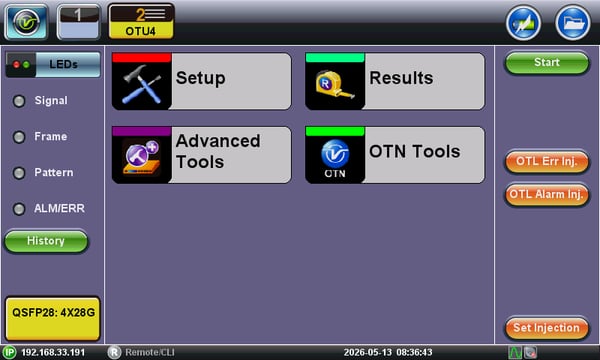
Select the OTU4 with Ethernet & Bulk Payloads test application and tap on the OK button to launch it. Wait for the OTU4 test application to load and the test application's main menu is displayed.
-
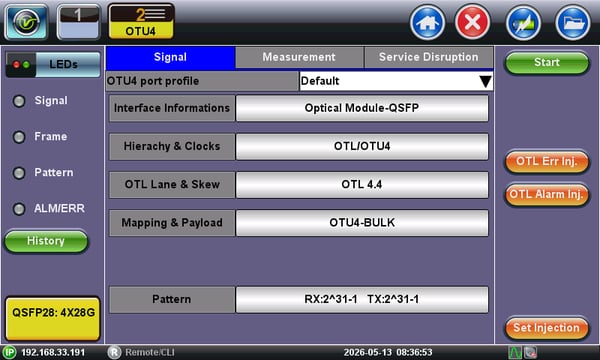
Once the OTU4 test application menu is displayed, select Setup.
-
On the OTU4 Setup screen, select the Mapping & Payload row.
-
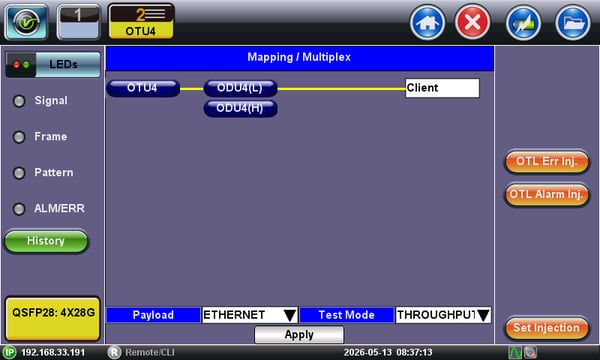
Select ODU4(L) mapping, if not already selected, to allocate the full capacity of the OTU4 link, and accommodate all the 100GE traffic.
-
Tap on the Payload pull-down menu field and select Ethernet.
-
Tap on the Test Mode pull-down menu selection field and select THROUGHPUT.
-
Tap on the Apply button and wait for the test set to reconfigure.
-
-
Tap on the red X Exit
button to go back to the Signal setup page. -
Select the Ethernet THROUGHPUT SETUP row, to configure the Throughput test characteristics.
-
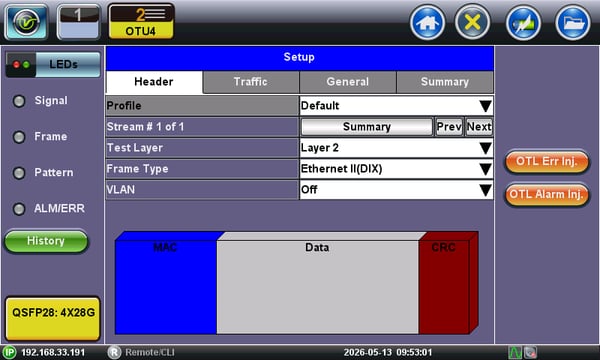
Select the Header tab and set Test Layer = Layer 2.
-
Tap on the blue MAC block and enter the MAC Destination address for the port, test set or loopback at the other end of the Ethernet link. (If the MAC address of the source needs to be spoofed, then enter it in the MAC Source field. Use the MAC Source button to recall the official test set's factory-assigned MAC address.)
-
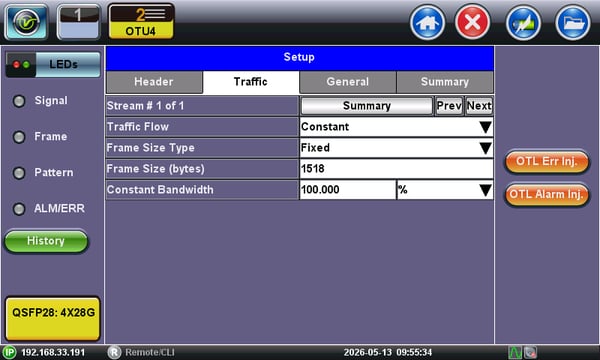
Select the Traffic tab and configure the desired Frame Size (e.g., 1518 bytes) and Bandwidth usage (e.g., 100%).
-
-
Tap on the red X Exit
button on the top bar of the screen, to go back the OTU4 test Signal configuration menu page. -
Clean and inspect the transceiver's LC-PC optical ports.
-
Clean and inspect a duplex LC-PC patch cord and connect it to the test set's QSFP28 port and to the link or device under test (DUT).
-
On the Action Buttons section, on the right side of the screen, tap on the gray out LASER On/Off button
to start transmitting signal. The Laser button will turn red and a laser warning icon will be shown on the top bar, while transmitting. (If the laser os OFF, the top bar will show the disabled warning icon .)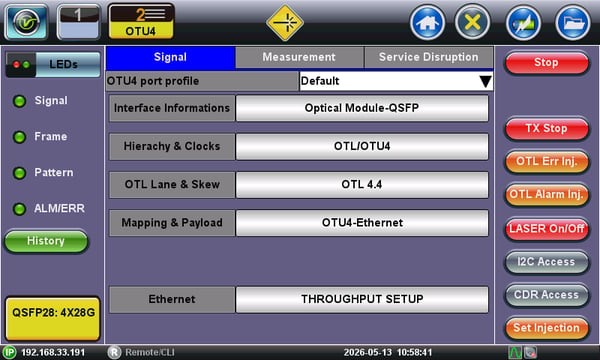
-
If the soft-LED indicators on the left side of the screen are green (OK), then tap on the Start
button to get the test started. The test set automatically displays the measurement Results Summary screen. Users can select the different tabs and sub-tabs to get the details on each of the layers.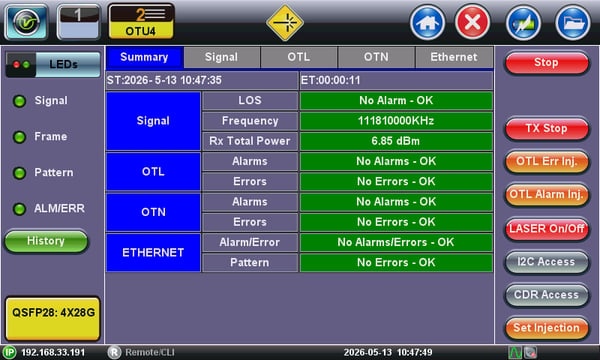
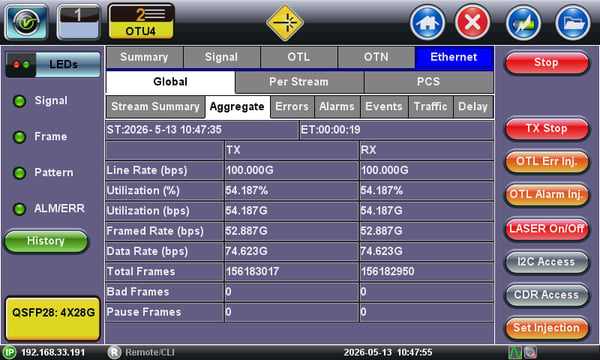
Once you have gathered enough data, tap on the Stop button and press the Save button to store the test results. Use a descriptive name for the test report.
When finished, tap on the OTU4 test application  button, to reveal the Test Application selection menu, then tap on the OTU4 card's Release button.
RXT-6402/6802 - Testing 100GE Throughput over OTU4
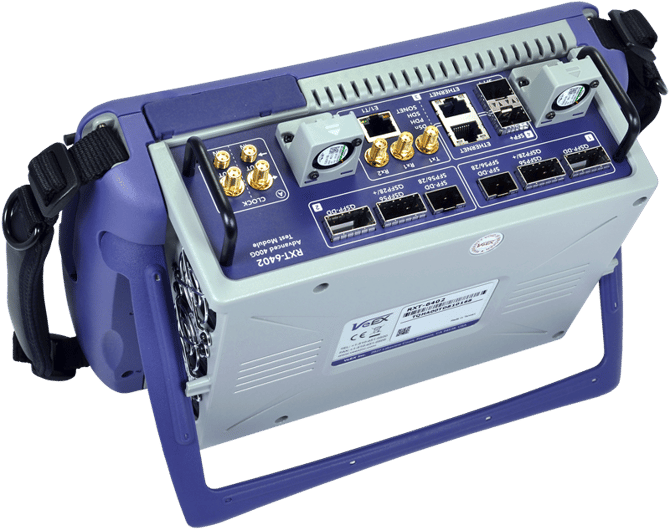
The High-Speed test modules for the RXT-1202 test set platform are available in different versions and configurations, covering 100G, 400G and 800G transport technologies (e.g., Ethernet, OTN, SDH/SONET, etc.). Refer to www.veexinc.com, or the links below, for further details about the latest versions available.
- RXT-6802 - Dual QSFP-DD 800G Test Module
- RXT-6811 - OSFP + QSFP-DD 800G Test Module
- RXT-6402 - Dual QSFP-DD 400GE Test Module
The test configuration is similar to the RXT-6200 and TX340s-100GX, so this section will focus on launching the OTU4 Test Application.
-
Turn the RXT-1202 test platform ON and wait for the Test Cards menu to be displayed.
-
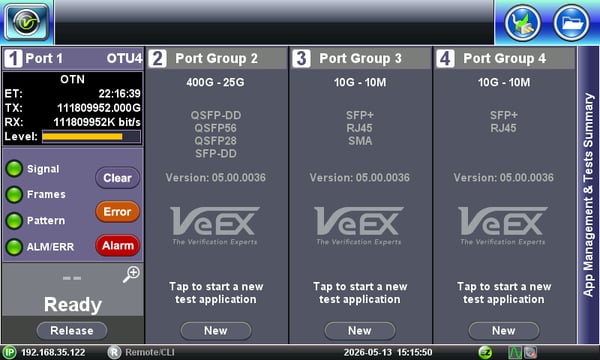
The RXT-6402 used in this example will show four test cards, indicating its ability to carry up to four independent and concurrent tests.
- The numbers in white rounded boxes identify the test Port Groups available (up to four). They correspond to the same white labels printed on the connector panel.
-
-
Select the QSFP-DD/56/28 Test Card on the left, labeled
Port 1, by tapping on the New button, to open its Test Mode Selection menu. (Once selected, the button will turn into a Release function to make the test engine resources available to another type of test.)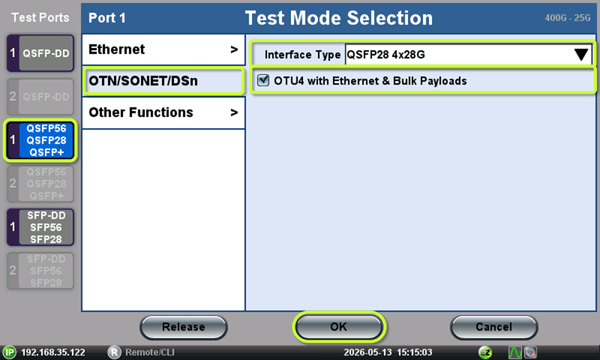
-
Tap on the QSFP56/28/+ Test Port button on the left, to select it as the active test port.
- Tap on the OTN/SDH/PDH or OTN/SONET/DSn technology selection line. (The label depends on International vs. USA GUI style setting.)
-
Select the OTU4 with Ethernet & Bulk Payloads test application and tap on the OK button to launch it. Wait for the OTU4 test application to load and the test application's main menu is displayed.
-
Insert an OTU4 capable QSFP28 transceiver into the respective QSFP or QSFP56 QSFP28/+ slot, with its pull-tab facing towards the front, as indicated by the
 panel label. There are two QSFP slots in the connector panel, as highlighted below, identify the Port Group 1 or 2, as selected earlier.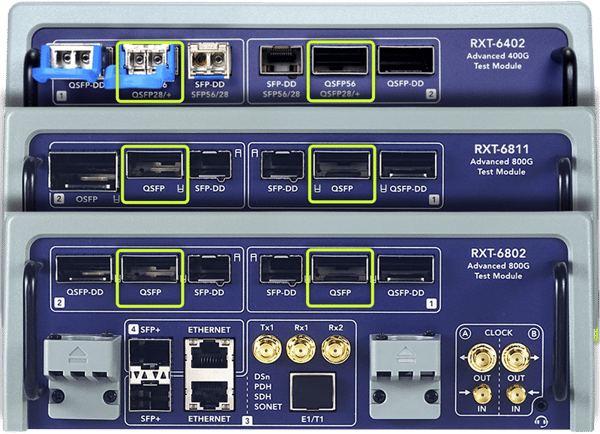
-
The remaining steps are identical to those for the RXT-6200. To proceed, click here to continue from step 7.
Troubleshooting Connections & Test Setup
If the top bar is red (not OK) or there are Alarm indications on the test set, then check:
-
That the transceivers and fibers are inserted correctly and well seated.
-
Confirm that the QSFP28 supports OTU4 (some earlier low-cost transceivers were 100GE only).
-
That the Laser is ON, by checking the laser warning icon and the LASER button.
-
The fiber connections.
-
The test configuration.
-
That the link or device under test is active, transmitting and configured correctly.
-
You may Start a test to get more detailed test results information.
-
Tap on the Signal button/tab to check signal levels for all optical lanes.
-
Tap on the OTN button/tab to check if there is any Errors or Alarms reported for the link under test.
-
Insert a loopback fiber (TX to RX) into the test set's transceiver to verify it is working correctly.
Testing Other Ethernet Rates over OTN
Direct Mapping of 40GE Payload into OTU3
Insert an OTU3 capable QSFP+ transceiver into the test port, select the OTU3 with Ethernet & Bulk Payloads test mode, and follow a similar setup as described earlier, to map 40GE→ODU3(L)→OTU3.
Direct Mapping of 10GE Payload into OTU2e
If supported by the test set, insert an SFP+ transceiver into the test port, select the OTU2e and OTU1e with Ethernet & Bulk Payloads test mode, and follow the appropriate setup to map 10GE→ODU2e→OTU2e.
Encapsulating 10GE Payload into OTU2, using GFP-F
If supported by the test set, insert an SFP+ transceiver into the test port, select the ODU0 and ODUflex test mode, go to Setup, configure Test Rate = OTU2, OTN Mapping = ODU2-GFP[F]-10GE, and set the appropriate configuration to map 10GE→GFP-F→ODU2→OTU2, using the Frame-mapped Generic Framing Procedure. Then use the Throughput test application to run the Ethernet tests.
Can Lower Ethernet Rates Transmitted Over Higer OTN Link Rates?
Although it is not that common in point-to-point applications, the test sets (with the appropriate licenses) are capable of transmitting lower Ethernet payloads, like 10GE into OTU4 (112 Gbps), using a combination of Mapping and Multiplexing. However, users require a lot more information, including multiplexing structure (single-step or multi-step multiplexing), channels, tributary slots used, etc. Also, whether the other payloads can be affected during the out-of-service tests or if the OTN link is just a larger "pipe" to allow for future service expansion to a faster rate.
Here are some simplified map/mux examples of some of the commonly used single-step multiplexing structures:
- 40GE→ODU3(L)→ODU4(H)→OTU4
- 10GE→ODU2(L)→ODU4(H)→OTU4
- 10GE→ODU2(L)→ODU3(H)→OTU3
- 1GE→ODU0(L)→ODU2(H)→OTU2
- More...