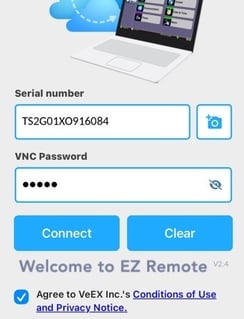
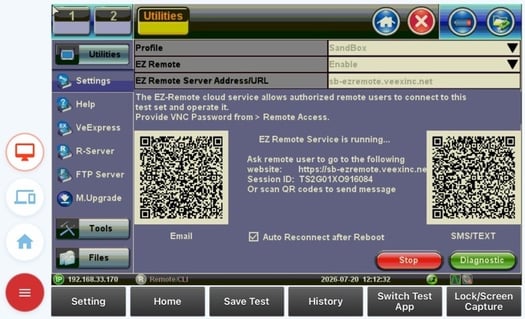
If you are already on an active EZ-Remote™ session with one VeEX test set and want to switch to a different test set, or to have a different test set on separate browser tab (e.g., working with more than one instrument), all you need to do is:
-
Tap or click on (or hover near the) the red
 Menu button, on the bottom-left corner of the browser window, to expand it. (If you are using a smartphone, you may need to turn it into landscape mode)
 -
Tap on the blue
 Home button.
 -
Enter (overwrite) the Session ID and Password for the other test set you want to access and/or control.